 flutterware
Previews
Look at a screen without running the app to get there. Previews renders every
@Preview in your project on a device frame, in a live Flutter engine, with
your fonts and your theme.
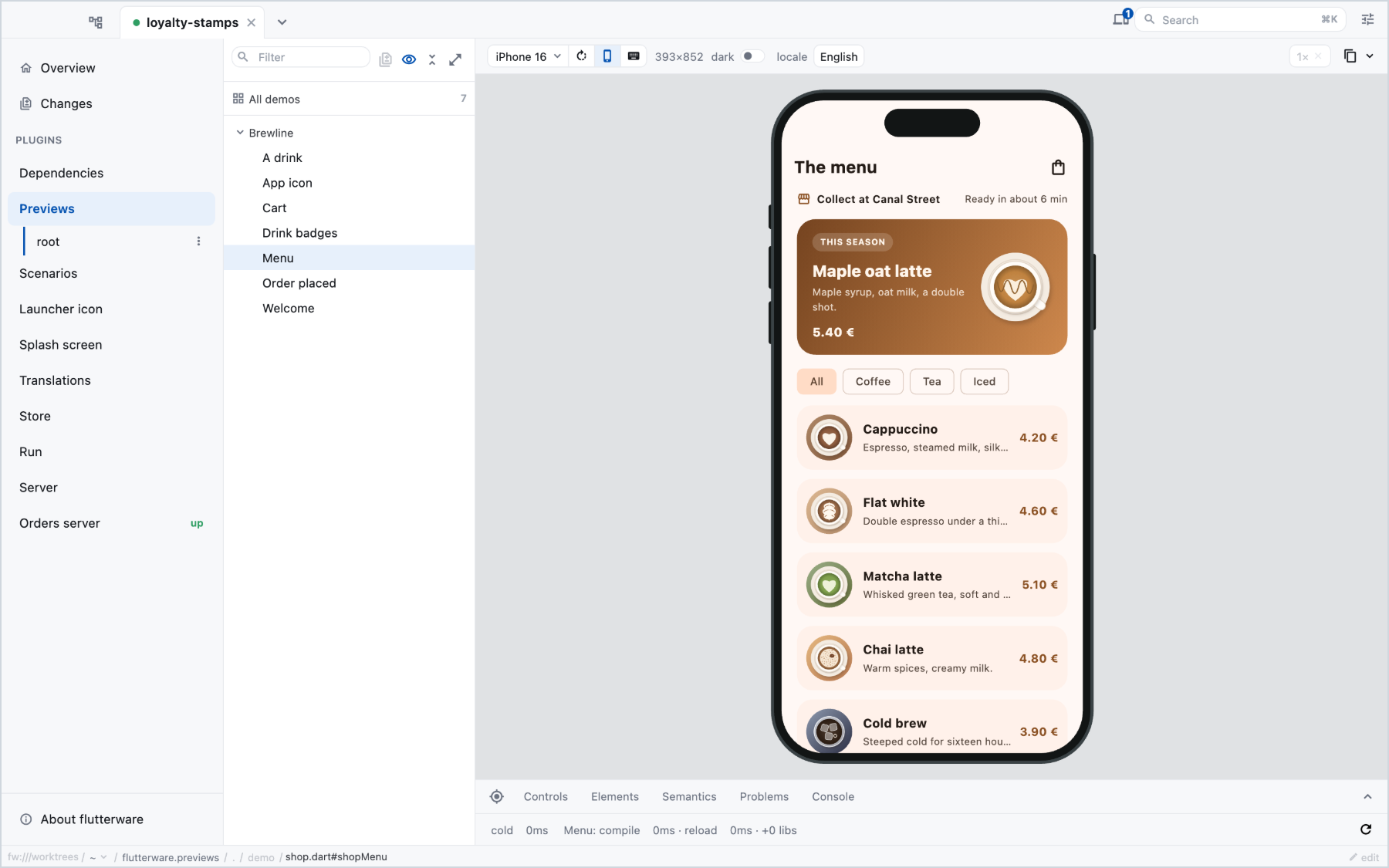
The live panel in the studio is macOS only for now. The command line actions
that render without a window, like screenshot and audit, also run on Linux.
Write a preview#
A preview is a function that returns a widget, marked with Flutter's own
@Preview annotation:
// demo/shop.dart
import 'package:flutter/widget_previews.dart';

@Preview(name: 'Menu', group: 'Shop', wrapper: wrapInShop)
Widget shopMenu() => const MenuScreen();

@Preview(name: 'Drink', group: 'Shop', wrapper: wrapInShop)
Widget shopDrink() => DrinkScreen(drinks.first);
Nothing from flutterware is needed to declare one, and there's no list to
register it in: every .dart file in the package is scanned. A preview written
for Flutter's own previewer shows up here unchanged.
fw run previews new --name='Menu' writes a starter file for you.
Turn it on#
// tool/flutterware.dart
fw.use(
  Previews(
    packages: [
      PreviewsPackage(
        app,
        directory: 'demo',
        canvases: [
          PreviewCanvas('', devices: [Devices.iphone16, Devices.androidTall]),
        ],
      ),
    ],
  ),
);directorylimits the scan to one folder. Leave it out to scan the whole package.- A canvas says which devices a folder's previews are drawn on. The first
device is the default, and the list is what the device picker offers.
''covers the whole package; a path like'demo/tablet'covers one folder, and the longest match wins. Without a canvas a preview renders on a plain 900×700 rectangle, which is rarely what a phone screen should be checked on. - A canvas takes devices from
Devicesonly. ADeviceyou build yourself is refused, because previews pass devices by id. For a size no device has, such as store artwork, leave the canvas without devices and pass--widthand--heighttopreviews screenshot.
Give previews what the app would#
A screen usually expects a MaterialApp, a theme and localizations above it.
The wrapper: of a preview puts them back. Wrap that in a PreviewShell and
you also get switches in the previews toolbar, which stay set as you move from
one preview to the next:
import 'package:flutter_localizations/flutter_localizations.dart';
import 'package:flutterware/previews.dart';

Widget wrapInShop(Widget child) => PreviewShell(
  'shop',
  builder: (context, axes) => MaterialApp(
    theme: shopTheme(
      axes.flag('dark', false) ? Brightness.dark : Brightness.light,
    ),
    locale: axes.picker('locale', {
      'English': const Locale('en'),
      'Français': const Locale('fr'),
    }, const Locale('en')),
    localizationsDelegates: [
      ShopStrings.delegate,
      ...GlobalMaterialLocalizations.delegates,
    ],
    home: child,
  ),
);
Outside the studio, in your app or in Flutter's previewer, every axis returns its default.
Set things up once for every preview#
Some of what an app needs happens once in main rather than in a widget:
turning off a font package's downloads, registering fonts, installing
HttpOverrides. Previews never run your main, so name a setup file on the
package instead of repeating it in every wrapper::
// tool/flutterware.dart
PreviewsPackage(app, setup: 'lib/preview_setup.dart')
// lib/preview_setup.dart
import 'package:google_fonts/google_fonts.dart';
Future<void> previewSetup() async {
// Previews render offline, and a test engine answers every download with an
// error. Use the fonts bundled under assets/ instead.
GoogleFonts.config.allowRuntimeFetching = false;
}previewSetup() takes no arguments and can be async. It runs once, after the
Flutter binding exists and before the first preview builds, everywhere a
preview renders: the studio's panel, screenshot, inspect, audit,
compare and the page build-web writes. That is also the place for
HttpOverrides.global = …, so previews that fetch get your fake answers. The
same file is compiled into the build-web page, so if you use that, keep
dart:io behind a conditional import.
If the file is missing or doesn't declare previewSetup, the previews plugin
reports it and refuses to render the package rather than render every preview
without it. If previewSetup() throws, you get its error instead of the
previews. The command line actions pick up an edit to the setup on their next
run; the studio's panel runs it when it starts, so reopen the panel after
changing it.
Knobs#
A knob is a value you can change while looking at a preview. Ask for one while building:
@Preview(name: 'Order placed', group: 'Shop', wrapper: wrapInShop)
Widget shopConfirmation() => Builder(
  builder: (context) =>
      ConfirmationScreen(name: context.knobs.string('name', 'Ada')),
);
It appears in the Controls tab. A preview's optional parameters become knobs
too, so Widget shopConfirmation({String name = 'Ada'}) declares the same one.
Outside the studio a knob returns the default written at the call site, so it's
safe to leave in code that ships.
A picker is a dropdown. For a switch you flip back and forth while looking, such as light and dark, ask for segments instead and every option stays on screen:
var brightness = context.knobs.picker('theme', {
  'Light': Brightness.light,
  'Dark': Brightness.dark,
}, Brightness.light, style: PickerStyle.segmented);
axes.picker takes the same style:, for a switch in the toolbar. Up to five
options are drawn as segments; a picker with more is drawn as a dropdown
anyway, so a long list never pushes the rest of the toolbar out of sight.
In the studio#
Pick a preview in the list and it renders on the canvas's default device. The toolbar changes the device, rotates it, raises the software keyboard and zooms. The tabs underneath are:
- Controls: the preview's knobs. The shell's axes sit in the toolbar above.
- Elements: the widget tree, with each widget's box and properties.
- Semantics: what a screen reader gets.
- Problems: why the preview isn't working, starting with compile errors, then anything the framework reported while it rendered.
- Console: what the preview printed.
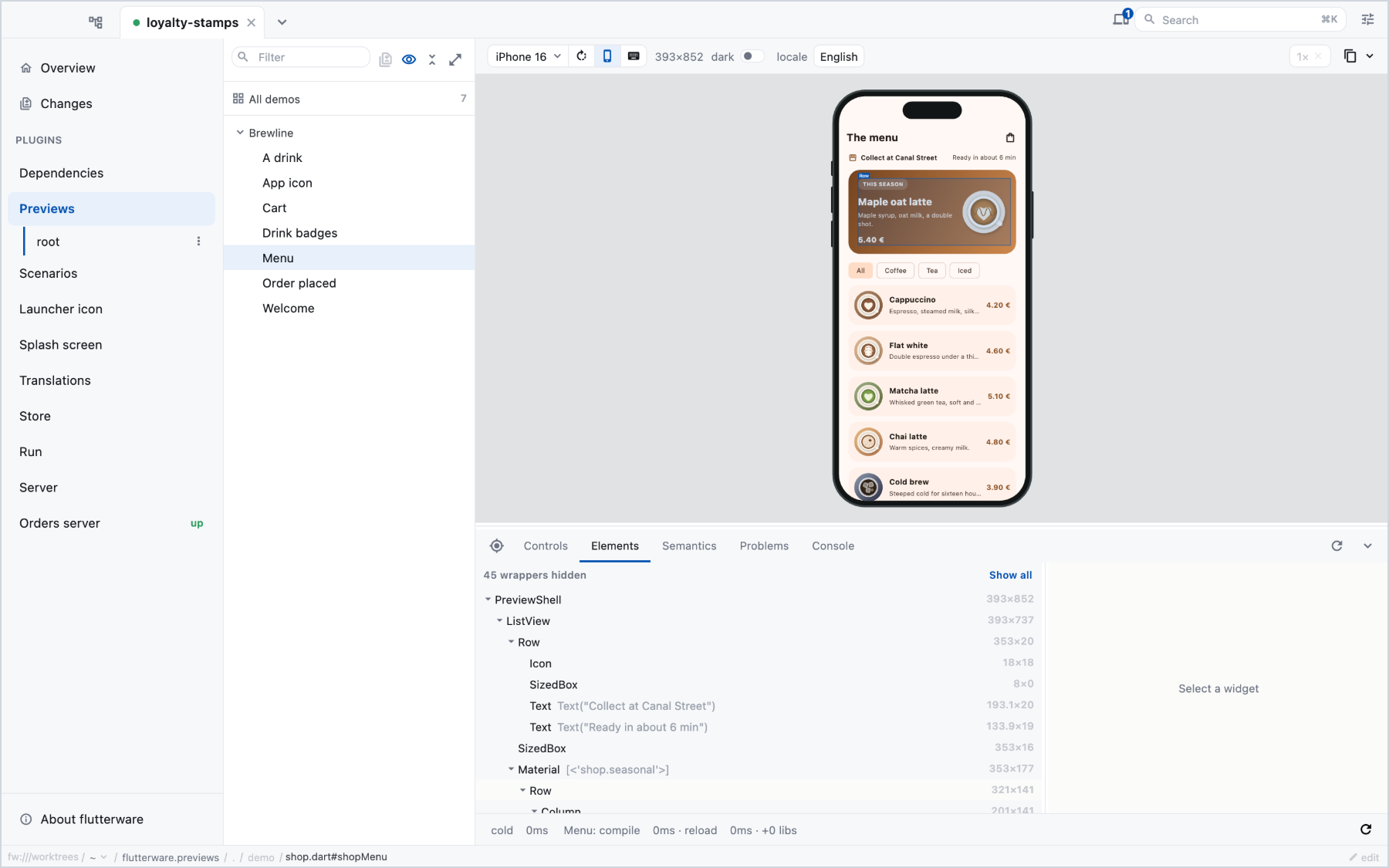
Save a file and the preview reloads.
From the command line or an agent#
fw run previews entries                                         # every preview, with its id
fw run previews screenshot --entry='demo/shop.dart#shopMenu'    # render one to a PNG
fw run previews screenshot --entry='demo/shop.dart#shopMenu' \
    --device=android-tall --axes='dark=true,locale=Français'
fw run previews inspect --entry='demo/shop.dart#shopMenu'       # what's on screen, as text
fw run previews audit                                           # render every preview, report failures
fw run previews build-web                                       # your previews as a web page
screenshot is the quickest way for an agent to check how a widget looks: it
renders with the real fonts and theme, at the device's pixel ratio, and
--node=<name> crops to one widget. Over MCP the same actions go through
flutterware_invoke.
A preview that draws and then reports an error, such as a font that fails to
download, still gets its picture. screenshot prints the path as usual, says on
stderr that the preview reported errors, and lists them under meta.errors in
--json. inspect lists them too and answers ok: false. Each error says
where it was thrown, preferring your own code over a dependency's, so a fault in
a theme or a wrapper points there rather than at the preview. Only a preview
that drew nothing is refused.
A preview can also be the source of an image you publish, such as store
artwork. On the plain rectangle (--device=fit, or a canvas with no devices),
--width and --height are pixels, so they give the exact size a store asks
for. --opaque writes the PNG without an alpha channel, which Google Play
requires for a feature graphic.
Check every preview in CI#
fw run previews audit renders every preview on its canvas, reports each one
that doesn't compile or doesn't render, and exits non-zero if there is one. It
also writes an ordinary test file, so the same check can run with the rest of
your suite:
fw run previews audit
flutter test build/flutterware/previews_harness.dart
Expect the first audit to find things. A preview that only worked because
something above it provided a Directionality or a MediaQuery fails here and
nowhere else.
Reference#
Every action and option, including compare against a base branch:
flutterware.previews in the capabilities reference.