 flutterware
Scenarios
A scenario is a widget test that takes a screenshot at every step. Write the test you'd write anyway, and you also get a picture of every screen it went through, on every device and in every language you declare.
import 'package:flutterware/flutter_test.dart';

void main() {
  scenario('Order a cappuccino', (s) async {
    await s.pumpWidget(const ShopApp());
    await s.tap(ShopKeys.getStarted);
    await s.tap('Cappuccino');
    await s.tap(ShopKeys.addToCart);
    await s.enterText(ShopKeys.cupName, 'Ada');
    await s.tap(ShopKeys.placeOrder);
  });
}
flutter test runs it like any other test. Under flutterware, every step also
keeps a screenshot, the widget tree, the visible text and the semantics tree
(what a screen reader gets). The studio draws the run as a flow you can walk
through, and the same results are there from the command line and for an agent.
The same runs feed store screenshots, the pictures in the translations table, and branch comparisons.
Turn it on#
// tool/flutterware.dart
fw.use(Scenarios(packages: [.new(app, languages: ['en', 'fr'])]));
package:flutterware/flutter_test.dart is package:flutter_test with the
scenario API added, so an existing test file keeps expect, find,
testWidgets and the rest. Changing the import is the whole migration.
Scenarios are found anywhere under test/, next to ordinary tests or mixed
into the same file. test/scenarios/ is only where fw run scenarios new
writes; set directory: to look in one folder only.
Discovery reads the source, it never runs it: it looks for a literal
scenario('name', …) call. A name built at run time is reported. A helper that
calls scenario for you, like runScenario(name, body), leaves no such call
in the file and is not found, so keep the scenario( call and its name in the
test file.
Run them#
fw run scenarios run                     # every scenario, on each folder's default device
                                         # (a real-time folder only when named)
fw run scenarios run --file=test/scenarios/shop_test.dart --language=fr
fw run scenarios run --matrix=declared   # every device and language the folders declare
fw run scenarios read                    # the step the last run failed on
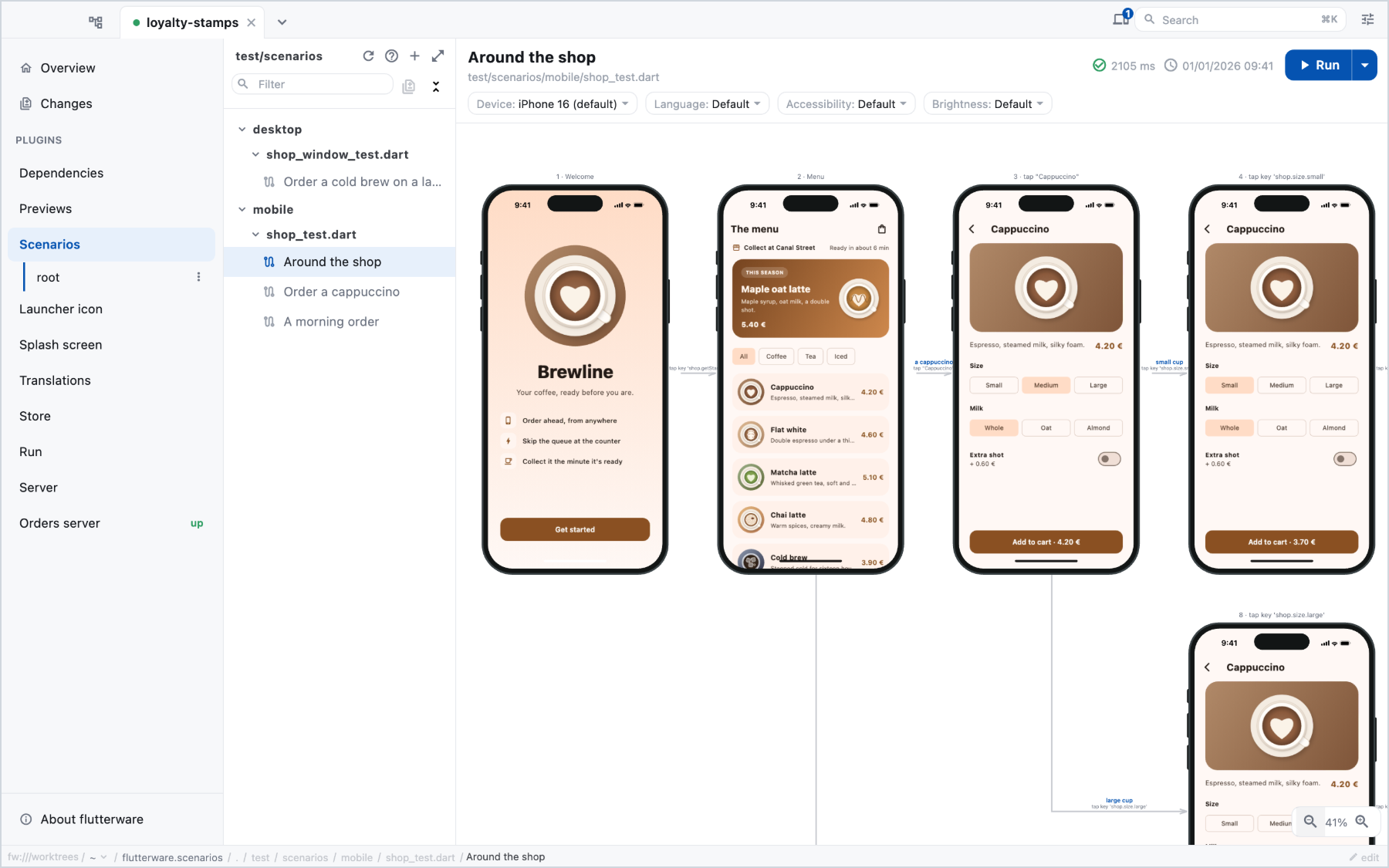
In the studio, pick a scenario and press Run. The flow shows one frame per step, with the action that led to it on the arrow. Open a step to see its screenshot next to its widget tree and texts.
The verbs#
Each one acts, waits for the screen to settle, and captures.
| verb | what it does |
|---|---|
pumpWidget(widget) |
mounts the app |
tap(target) |
taps |
doubleTap(target) |
taps twice, close enough to be one gesture |
longPress(target) |
presses and holds |
enterText(target, text) |
fills a field — or types it a key at a time, typing: |
drag(target, offset) |
drags by an offset |
scrollTo(target) |
scrolls until the target is on screen, then stops |
hover(target) / unhover() |
parks the mouse over it and holds — tooltips, hover states |
secondaryTap(target) |
right-clicks — a context menu |
scroll(target, offset) |
turns the mouse wheel over it — scrolls that pane |
key('meta+k') |
presses a key or a chord — shortcuts, escape, tab |
back() |
the Android back button — pops the route |
wait(duration) |
moves the fake clock past a timer |
act(description, body) |
a cause that is not a finger — a push, a completer, a backend — named on the step |
screen(name) |
captures without acting |
split({...}) |
forks the flow |
Everything takes a target, which can be a String (visible text), a Key,
a Type, an IconData, a Finder, or one of:
await s.tap(Target.label('Add to cart'));          // the semantics label — the
                                                   // handle on an icon that
                                                   // carries no text
await s.tap(Target.tooltip('Delete'));
await s.tap(Target.containing('Buy'));             // text *containing* this,
                                                   // where a plain String
                                                   // matches the whole label
await s.tap(Target.within(ShopKeys.cart, 'Buy'));  // the Buy of *that* card
await s.tap(Target.nth('Buy', 1));                 // the second one
They compose, because the scope and the index take targets of their own:
Target.nth(Target.within(ShopKeys.cart, 'Buy'), 0).
When a target matches nothing or matches several things, the error says which targets were on screen and what to reach for instead.
A target that exists but sits below the fold is scrolled into view first,
the way the user the verb stands in for would — so one scenario runs unchanged
on a small phone and a tablet, whichever side of the fold the button lands on.
What scrolling cannot fix is refused loudly: a covered widget, or one off
screen with nothing scrolling to it. (flutter_test alone prints a console
warning on a missed tap and carries on; a flow that silently diverges is the
one failure a screenshot-per-step tool must not have.) A widget a lazy list
has not built yet matches nothing — that is what scrollTo is for, and
find.text('Row 40').first is walked to the same way as 'Row 40'.
s.tester is the real WidgetTester if you need something the verbs do not
have. Frames it draws are counted and reported on the next step, so a flow with
a gap in it says so rather than quietly missing a screen.
The mouse and the keyboard#
hover, secondaryTap and scroll move one mouse, and it stays where it was
put, as a real one does: a tap after a hover still finds the control
hovered, and unhover() takes the mouse away. hover holds for 600ms of the
fake clock (hold: to change it), because what a hover starts is usually a
timer — Tooltip.waitDuration — and a tooltip is then in the step's picture
and its texts like any other widget. Every scenario, and every branch of a
split, starts with no mouse on the screen.
scroll's offset is a wheel's, not a finger's: a positive dy moves down
the list, where drag needs a negative one. The wheel reaches the pane under
the mouse, so on a page with several lists it scrolls the one you name.
doubleTap puts 80ms of the fake clock between its taps (gap:), because a
double-tap recognizer ignores a second tap that arrives sooner than 40ms.
A desktop is pointed at. On a desktop device — every Devices.*Window —
tap, tapAt, doubleTap, longPress and drag press with that same
mouse, and it stays where it clicked, so the control is hovered in the next
picture as it would be on the desktop. Everywhere else, a run staged on no
device included, they are a finger. Widgets that adapt to the pointer — a text
field's selection handles, a tooltip's trigger, a slider's value label — show
the layout their users see. One consequence to know: a mouse drag does not
scroll a list, on the desktop or here, so reach for scroll or scrollTo
there.
key is for shortcuts and navigation, never for typing — a character reaches
a field through text input, not through a key event, so enterText is the
verb that types. The last name in a chord fires and the ones before it are
held: meta+k, shift+tab, ctrl+s. A keystroke goes to whatever holds
focus, so one pressed while nothing does, and taken by nothing, fails the step
rather than passing without having reached the app: tap something first, or
give the widget the shortcut belongs to autofocus: true.
enterText puts the whole value in one edit, the way a paste arrives. A field
that listens to its edits — a search that debounces its query, a code input
that moves to the next box — needs them the way keystrokes arrive, and
typing: types one character at a time with that much of the fake clock after
each:
await s.enterText(Keys.search, 'flat white',
    typing: const Duration(milliseconds: 100));
await s.wait(const Duration(milliseconds: 300));   // the debounce's own wait
The step settles as usual afterwards, and a pending timer schedules no frame,
so the debounce's own delay is yours to wait out.
Settling#
Every verb takes a settle:.
await s.tap(button);                          // Settle.standard — up to 5 seconds
await s.tap(button, settle: Settle.none);     // don't wait
await s.tap(button, settle: Settle.frames(3));
await s.tap(button, settle: Settle.upTo(Duration(seconds: 30)));
The default gives up after five (fake) seconds instead of throwing. This
matters: a screen with a spinner on it never settles, and
pumpAndSettle throws on one. A scenario that reaches a loading state records
settled: false on that step — the GUI says "still animating" — and carries
on.
s.settle() is the wait without a step: the same policy (or the one you
pass), no capture. It is what a suite ported from raw widget tests maps a
legacy pumpAndSettle() onto, and the wait to reach for after work you
pumped through s.tester yourself.
Settle.strict is the default made red: the same five seconds, the same
landing of real work afterwards, and a screen still asking for frames when
both are done fails the step instead of recording a flag. Reach for it where a
spinner in a picture is a bug — settled: false is a number in a report, and
a scenario whose assertion finds its widget passes with a spinner in every
frame for as long as nobody reads that number. Say it once for a folder:
Future<void> testExecutable(FutureOr<void> Function() testMain) =>
    runScenarios(testMain, settle: Settle.strict);
A scenario's own settle: still wins, and so does a verb's — settle: Settle.standard on the one tap whose picture is meant to show the spinner.
Settle.until(target) waits for something instead of for quiet. Data that
arrives without announcing itself looks exactly like an app with nothing left
to do: a row down a sync stream that opened long ago, or a list that reads its
local database after the tap that opened it. The default settles on the empty
state and photographs that. Name what the step is waiting for:
await s.tap('Orders', settle: Settle.until('Order #1042'));
await s.act(
  'An order placed on the other device reaches this one',
  () => otherDevice.placeOrder('#1043'),
  settle: Settle.until('Order #1043'),
);
It pumps until the target is on screen, then settles the way the default does.
The target is anything a verb takes, and a positional one waits like the rest:
find.text('Order #1042').first over nothing, or a Target.nth past the
rows so far, is simply not there yet. The timeout is ten seconds by default,
on the lane's own clock. A target that never appears fails the step, and the
step's picture is the screen at the moment the wait gave up.
Motion that says nothing#
A step that never settles runs its whole budget on every replay, and the
run names what kept it going: settled: false on the step comes with
stillTicking, and the GUI's "still animating" notice lists the same —
CircularProgressIndicator (lib/src/orders/status_cell.dart:42) for a
framework widget, by the line of the app that built it, or the frame that
started an animation of the app's own.
Most of it is a spinner, a shimmer or a pulsing dot, and the phase it is at carries no information. Say so in the app, once, where the loader is built:
import 'package:flutterware/ambient.dart';

Ambient(child: CircularProgressIndicator())
Outside a scenario Ambient builds its child and nothing else. Inside one,
nothing under it schedules a frame, and every Material progress indicator
without a controller of its own is drawn at one fixed phase — so the step
settles, and the picture is the same on every run and every machine. Anything
else under it freezes at its own start.
Settle.strict is not relaxed by it: a step that ends with an Ambient on
screen still fails there. Freezing makes the picture deterministic; it does
not make a loader on screen acceptable where the suite says it is not.
A post-frame callback nothing schedules a frame for#
WidgetsBinding.instance.addPostFrameCallback does not request a frame — it
appends to a list and waits for the next one, "whenever that may be, if ever"
in the SDK's own words. And the test binding draws no frame at all for a pump
with nothing scheduled. Put the two together and a callback registered while
the tree is quiet never runs: not on the next verb, not on s.settle(),
not on a raw s.tester.pumpAndSettle(), which loops on the same flag.
Registered during a build it is fine — the frame in progress runs it at its
end. Registered outside a frame it is stranded, and the shape that bites is
an initState that awaits first:
Future<void> _load() async {
  await repository.fetch();                    // the frame is long over here
  WidgetsBinding.instance.addPostFrameCallback((_) => _reveal());
}
The fix belongs in the app, because on a device that callback is equally waiting on somebody else to schedule a frame — it just usually gets one:
var binding = WidgetsBinding.instance;
binding.addPostFrameCallback((_) => _reveal());
binding.ensureVisualUpdate();                  // schedules one unless one is coming
Where the app is not yours to change, ask for the frame from the scenario:
s.tester.binding.scheduleFrame();
await s.settle();
Nothing here is a scenario's doing — a plain widget test strands it the same
way. What scenarios changes is that it strands it reliably: tester.pumpWidget
leaves a frame scheduled and the stranded callback catches a ride on it, while
every verb here settles to a quiet tree, so there is never a ride going. Put a
pumpAndSettle() before the registration in a raw widget test and it stops
firing there too.
Work on the real event loop#
A settle follows frames, and work that resolves on the real event loop — an
asset read, a decode on an engine thread, a file, an isolate — schedules none
while it is in flight. Every verb lands what it can see for itself: a pending
ImageProvider, an asset read through s.assets, and a dozen guessed turns
of the real loop for the rest, which is enough for an SVG and nowhere near
enough for a 6 MB model import. For the rest, the app says so:
import 'package:flutterware/real_work.dart';

@override
void initState() {
  super.initState();
  _model = RealWork.track(_loadModel(), label: 'scene model');
}
RealWork.track hands the future straight back; outside a scenario it costs a
set insert and a listener on the future, nothing more. Inside one, every verb that follows waits — real milliseconds, a
pump between turns so the continuations run and the setState at the end is
drawn — until it has completed, then photographs. A tracked future that never
completes runs into the scenario's deadline, whose message names the label.
Without it, the shape by hand is poll-and-pump, and the pump is the whole point:
while (!scene.ready) {
  await s.tester.runAsync(() => Future<void>.delayed(Duration(milliseconds: 1)));
  await s.tester.pump();
}
What does not work is awaiting the app's future bare, or inside
s.runAsync. A future made under fake time completes through a fake
microtask, and only a pump runs those; the body suspended on that future is
the one thing that could have pumped. Bare, that is thirty seconds of nothing
and then a deadline; inside s.runAsync, no pump can run at all and the
watchdog names it after eight. s.runAsync is for work that needs the real
clock and nothing else — a database, a socket — never for a future the app
already created.
An asset read through s.assets is counted as a read and no further. A
package that then parses the bytes in an isolate — Lottie with
backgroundLoading: true — has a second half nothing counts, and that half is
the app's to announce. Lottie also keeps each load for the life of the process,
so a load one scenario started would be awaited from the next one's zone, where
it never completes. RealWork.run starts the work outside every scenario's
zone and tracks it:
final _intro = AssetLottie('assets/intro.json', backgroundLoading: true);

@override
void didChangeDependencies() {
  super.didChangeDependencies();
  RealWork.run(() => _intro.load(context: context), label: 'intro');
}

@override
Widget build(BuildContext context) => LottieBuilder(lottie: _intro);
Work on the fake clock#
A future that waits on the fake clock — a Future.delayed, a debounce, a
repository that answers behind a timer — is the opposite case, and has the
same symptom. Only a pump moves the clock, so awaited bare between verbs it
never completes; the deadline says so, and names the timer and the line that
started it. Await it inside s.act, which moves the clock for its body:
await s.act('The search debounce fires', () => search.query('latte'));While the body waits on a timer or a frame, the act pumps at the settle
interval until the body completes, up to timeout: of fake time (ten seconds
by default); a body still waiting then fails the step with what the clock
still held. A body that needs no time moves none, and a verb called inside the
body moves the clock itself, so the act waits for it rather than pumping under
it. On the real clock (ScenarioTime.real) the body's timers fire on their
own and the act only awaits it.
Shots#
By default every verb captures. Shot('name') names the picture; the unnamed
ones are collapsed as detail steps in the flow.
A flow never holds the same picture twice by accident. screen(name) straight
after a verb puts the name on that verb's picture rather than taking a second
one of the same frame. A verb that is there to let something happen — wait,
runAsync, scrollTo, unhover — takes no step when the screen ends where it
started, whether it drew nothing or redrew the same pixels. Any other verb that
changes nothing keeps its step, marked identical to the one before it: a tap
that moved nothing is what a stalled flow looks like.
scenario('Long flow', shots: Shots.manual, (s) async {
  await s.tap(next);                       // no capture
  await s.tap(next, shot: Shot('Summary')); // captured
});

await s.tap(next, shot: Shot.skip);        // skip just this one
await s.tap(next, shot: Shot('Home', tags: ['store']));
Tags are how the store lane picks its screenshots — see below.
s.act names its step with its description, which makes every act a shot.
shot: false keeps the step and drops the name: the flow still shows it, as
act "…", and shots and the store export leave it out.
await s.act('The backend is seeded', shot: false, () => backend.seed());Splitting a flow#
One scenario, every path through it:
scenario('Around the shop', (s) async {
  await s.pumpWidget(const ShopApp(), shot: Shot('Welcome'));
  await s.tap(ShopKeys.getStarted, shot: Shot('Menu'));
  await s.split({
    'a cappuccino': () async {
      await s.tap('Cappuccino');
      await s.split({
        'small cup': () async {
          await s.tap(ShopKeys.size(DrinkSize.small));
        },
        'large cup': () async {
          await s.tap(ShopKeys.size(DrinkSize.large));
        },
      });
      await s.tap(ShopKeys.placeOrder, shot: Shot('Order placed'));
    },
    'the empty cart': () async {
      await s.tap(ShopKeys.openCart, shot: Shot('Empty cart'));
    },
  });
});
The body replays once per path, so each branch starts from exactly the state the fork was reached with. Steps before the fork are captured once and shared; the flow graph fans out where the app does. Splits nest, and a failure inside one names the branch that reached it.
Each replay starts the pinned clock where the first run did, so a record the
body dates with clock.now() has the same date in every branch, however long
the branches before it took.
Because the body replays, anything a branch needs freshly built belongs in the
body — setUp runs once per scenario, not once per path.
Devices and languages#
A folder says what it is for, once, in the file flutter test already looks
for:
// test/scenarios/mobile/flutter_test_config.dart
import 'dart:async';
import 'package:flutterware/flutter_test.dart';

const phones = ScenarioProfile(
  'phones',
  devices: [Devices.iphone16, Devices.iphoneSe, Devices.androidTall],
  languages: ['en', 'fr'],
);

Future<void> testExecutable(FutureOr<void> Function() testMain) =>
    runScenarios(testMain, profile: phones);
The list is the offered set, and its head is the default. No scenario
mentions a device. test/scenarios/desktop/ can name a different profile, and
opening a scenario from either folder frames it the way that folder says — the
GUI remembers a device per folder, so picking an iPhone on a phone scenario
never follows you to a desktop one.
The folder is the unit, and that is structural, not a preference: devices are
selected per folder, never per scenario. A suite whose phone and desktop
scenarios interleave in one directory has to split into folders before it can
say so. orientations is likewise an axis, crossed with devices — two
devices × two orientations declares four matrix points, not two — so a suite
that used to name iPadLandscape as its own device names the device once and
the orientation beside it. (A device that cannot rotate contributes one point,
not two.)
flutter test runs one pass at the head of each list. CI brings its own:
flutter test test/scenarios/mobile \
  --dart-define=fw.devices=iphone-se,android-tall \
  --dart-define=fw.languages=en,fr
That declares one real test per combination — Counter [iPhone SE · en] … —
from a single invocation and a single compile. FW_DEVICES / FW_LANGUAGES
do the same for a CI job that would rather set an environment block.
Under the runner, don't restate the lists at all: fw run scenarios run matrix=declared reads the folder profiles and runs every point they declare
— each folder's devices, languages, orientations and app axes,
crossed the same way explicit lists are. A point runs only the files whose folder declares it, so
the phone folder runs on its phones and the desktop folder on its windows,
never on each other's; a point two folders both declare runs both in one
pass, and a folder with no profile runs once, as a run naming no device
would. file=, scenario= and tag= narrow it as they narrow any run.
Adding a device to the declaration then adds it to CI, instead of silently
not.
Explicit devices= and languages= lists are different: they name the
devices for the whole run, every file on every one of them, whatever the
folders declare.
Inside a body, s.assignment reports what this pass is running as, so an
expectation can adapt to the screen it is on.
The app's own axes#
Devices, languages and orientations are axes flutterware knows. An app usually has a few of its own — two brand themes, a high-contrast mode, a feature flag's variant — and a folder declares those beside its devices, each with the values worth running:
// test/scenarios/mobile/flutter_test_config.dart
const phones = ScenarioProfile(
  'phones',
  devices: [Devices.iphone16, Devices.iphoneSe],
  languages: ['en', 'fr'],
  axes: {
    'brand': ['coffee', 'tea'],
  },
);
A scenario reads the value it is running in and builds its app for it:
scenario('Order a cappuccino', (s) async {
  await s.pumpWidget(ShopApp(
    theme: switch (s.axis('brand')) {
      'tea' => teaTheme,
      _ => coffeeTheme,
    },
  ));
  await s.tap('Cappuccino');
});
The values are words, because a profile is const and a theme is not: turning
tea into a ThemeData is the scenario's job, or a helper's its folder
shares. As with devices, the first value is the default — flutter test,
the studio and a run that names none all build the coffee app. s.axis refuses
a name the folder does not declare, so a typo fails rather than photographing
the default twice under two names.
Running across them is the same as running across the other lists:
fw run scenarios run --axes=brand=tea                # one value
fw run scenarios run --axes=brand=coffee,tea         # both: …/coffee/, …/tea/
fw run scenarios run --matrix=declared               # every folder's own values
fw run scenarios shots --axes=brand=coffee,tea       # en/iphone-16-coffee/, en/iphone-16-tea/
flutter test test/scenarios/mobile --dart-define=fw.axes=brand=coffee,tea
Several axes are comma-separated too — --axes=brand=coffee,tea,contrast=high
— and FW_AXES is the environment form of fw.axes. An axis is run only
where it is declared: a folder without brand ignores --axes=brand=tea, a
folder that declares brand without tea fails its scenarios saying so, and a
name or a value no folder declares is refused before anything runs. The web
export and the video take --axes as well.
Unlike portrait and light, a value is always written down — in a matrix
directory (iphone-16-fr-tea), a test name (Counter [iPhone 16 · fr · tea]),
a step's address (?axis.brand=tea) and s.assignment?.axes — the default
included. The first value is only the order somebody listed them in, and a
directory that left it out would change meaning when the list was reordered.
A folder that declares no axes writes exactly what it wrote before.
In the studio, each axis the open scenario's folder declares gets a picker beside Device and Language, offering that folder's values.
Real-time folders#
A folder can run on the wall clock instead of the fake one, against a real
backend: the same scenario(), the same verbs, the same report. It is how an
integration suite that used to need a device becomes a folder of scenarios.
The folder says so in its config, and the declaration says it again, because
the runner has to know before it builds anything:
// integration_test/scenarios/flutter_test_config.dart
Future<void> testExecutable(FutureOr<void> Function() testMain) =>
    runScenarios(testMain, time: ScenarioTime.real());

// tool/flutterware.dart
fw.use(Scenarios(packages: [
  .new(app),
  .new(app, directory: 'integration_test/scenarios', time: ScenarioTime.real()),
]));
A package can declare a fake-time folder and a real-time one side by side, and
the second one is addressed by its directory: app/integration_test/scenarios.
Under real time, the network is live by default. Animations run at a tenth of
their duration (ScenarioTime.real(animations: 1.0) to film them). Each
scenario gets its own process, several at once (--jobs).
It runs when you ask for it. A real-time scenario creates an account, sends an email, texts a phone, so nothing runs it by accident:
- The studio runs it when you press Run, not when you open its page.
fw run scenarios runwith no--packageruns the fake-time folders only, and names the ones it left out undernotRun.--package=app/integration_test/scenariosruns the real-time folder.- A comparison never runs one.
What a step waits for. A live request is waited for until its headers are
in, so no scenario needs a hand-written wait for an HTTP call. What arrives
after that is not announced: a sync stream's rows, or a list that reads its
local database once the tap has opened it. Those need
Settle.until.
Work before the flow goes in a setup beat: await s.setup('a fresh account', () => api.signUp(...)) is one step, with its duration and its exchanges, and
no picture.
If a scenario takes its process down with it (an error that escapes every zone it owns), that scenario is reported red. The report keeps the steps it captured and the last of what the process printed, and the rest of the run carries on in a fresh process.
Traps#
splitreplays real side effects. The body runs once per branch, so an account made before the fork is made once per branch, and so is every email and text. In a real-time folder, prefer separate scenarios.- Pump a second device as a new widget. When two apps share their root
widget types, a second
pumpWidgetupdates the first app'sStateinstead of mounting a new app, and the screen still shows the first device's data. Give each app its own key:KeyedSubtree(key: UniqueKey(), child: app). - A second device is a second object. Pumping the same app object again unmounts the first one, but whatever it opened natively stays open. A local database opened twice on the same files can warn about it and stall. Give each device its own object and its own data directory.
A shape that works#
This is from a suite that replaced its device tests with a real-time folder: six flows, two apps, and 127 steps in 20 seconds.
- One object per device. It holds its own credentials, links and database directory, and knows how to build each app that device can run.
- Check the stack before the first request. Use a raw socket connect, so the check is not an exchange recorded on the step. When nothing answers, fail on the first line and name the command that starts the stack.
- Fresh accounts only, made through the API in
s.setup. Nothing depends on seed data, so the same folder runs on a developer's stack and on CI's empty one. - Read mail and texts over HTTP, from whatever catches them in the dev stack.
- Point every guest at the stack through the environment. A one-shot
fwpasses its environment down to the scenarios, so CI can aim a whole run at an isolated stack with one variable.
Fonts: the lane decides how text measures#
flutter test launches its tester with --use-test-fonts --disable-asset-fonts, hardcoded — no flag turns it off. Any family nobody
loads real bytes for draws every glyph as an identical filled box and
measures at the box's width, roughly double a real glyph. That is the wrong
kind of wrong: the suite still passes, layouts still resolve, and every
screenshot is lying about where text ends. Headings that name a bundled
family look fine while the body text beside them lies.
Flutterware closes this in both lanes. Every family in your
FontManifest.json is loaded before anything runs — under the runner and
under bare flutter test alike — and under flutter test the
platform-default families (Roboto, the Apple and Windows system names) get
real Roboto from the SDK's own cache, so text that names no family measures
real too. A family you bundle yourself is always left to your bytes.
The residue is why the runner is the lane for pictures: under flutter test
an iOS-profile scenario measures its default text as Roboto — close, not SF.
fw run scenarios run spawns the tester without those flags, so it renders
and measures the real thing; treat its captures as the authoritative ones,
and bare flutter test as the assertion lane it is.
What a run leaves behind#
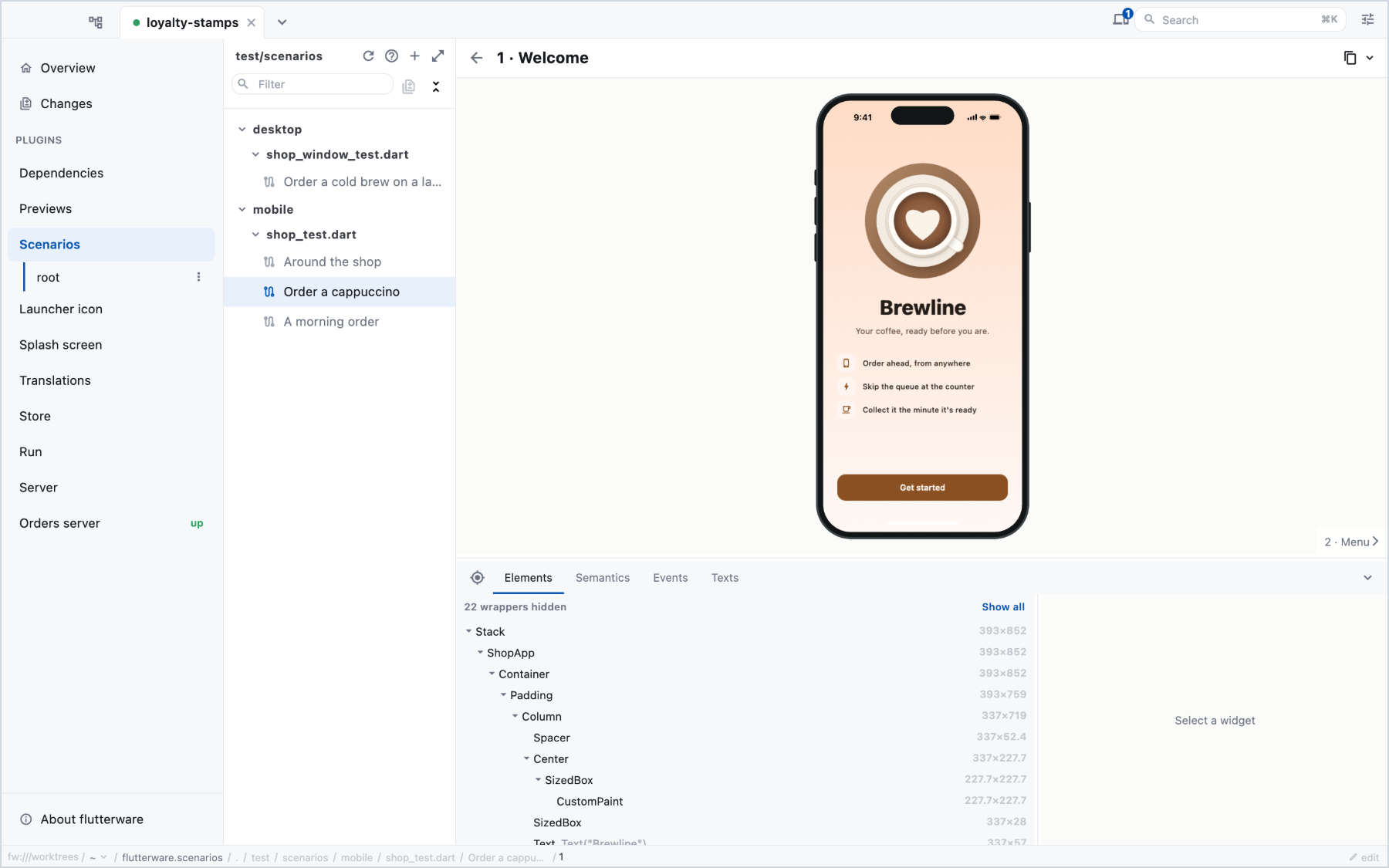
In the GUI, opening a scenario runs it and draws the flow. From the CLI or an agent — the same actions, the same shapes:
fw run scenarios list
fw run scenarios run --file=test/scenarios/mobile/shop_test.dart
fw run scenarios run --devices=iphone-se,android-tall --languages=en,fr
fw run scenarios run --tag=smoke
A matrix writes one directory per point — <output>/<device>-<language>/ —
with an index.json beside them mapping each assignment to its directory and
result. Each step leaves a PNG, a .tree.json, a .semantics.json — the
merged semantics tree in reading order, labels and flags and actions by name —
and its texts; a failing scenario reports the error with the frame captured
at the failure, not the one before it. A scenario that raised more than one
exception reports each with its own message and its own stack — never
flutter_test's "Multiple exceptions (2)" counter, which is the sentence it
prints after discarding both.
Beside the artifacts sits run.json: the whole run in the result's own
shape, every step of every scenario. The reply the action hands back
summarises — by default only each failure's frame rides along (steps=
chooses) — so a script that counts steps reads stepCount, or the file. A
relative --output resolves against the worktree root, and run.json lands
in the same directory as the images it names. A red run carries a flat
failed list at the top — package, file, scenario, first line of the error
— so a script finds the red one without walking every package.
Several files run in one process, in the order given — --file=a,b or
--file=a --file=b — which is how to reproduce a failure that only happens
after another file has run: a future one scenario leaves in its fake zone only
bites the scenario after it. Each selector must match something; a typo in
the second is refused, not run green on the strength of the first.
What the app printed rides the steps: print and debugPrint are events on
the print channel, package:logging records on log, platform traffic on
platform — on the step that followed them, in the eventTitles digest and
whole in scenarios read --events (--channel=print for just the prints).
dart:developer's log goes to the VM's logging stream and nowhere else,
here as under flutter test. A scenario that runs out its deadline ends on a
failed step it never took: no picture, the events since the last capture,
and a diagnosis as its failure — which verb the body was inside and the line
that called it, whether a completion is queued behind a pump nothing runs
(hand it to RealWork.track) or nothing is queued at all (a future from an
earlier scenario's fake zone, or real-time work; the previous scenario is
named), and which platform messages went out and were never seen answered,
with the app frames that sent them.
scenarios read takes a step by any leg run reported — the tree path, the
image path, or the fw:// address every step carries — so a step has one
identity across run, read and the GUI.
scenario(skip: true) is honoured the way flutter test honours it: the
body never runs, the run stays green, and the outcome says skipped instead
of pretending it passed — the same file answers the same way on both lanes.
Content that is in the tree but not on the screen — the route you navigated
away from, an Offstage — is marked offstage in the .tree.json, and the
Elements tab folds it away so what you read is what the screenshot shows.
In the GUI, the step page's Semantics tab shows that tree: the words
bright and the structure dim, roles badged, each row lighting its rectangle
up on the screenshot. It is the projection a screenshot cannot show — an icon
button with no label is invisible pixels and an obvious gap in this list —
and it is where the strings for Target.label(…) come from.
--tag filters scenarios by scenario(tags: [...]), the same tag
flutter test --tags uses.
Runs share a warm harness, so the second one skips the compile. restart
drops it when you want a cold start.
Named shots, as files#
For finished store images, framed and sized for each store, use Store screenshots. This is the raw material: the named shots of a run, written as plain PNGs.
fw run scenarios shots --languages=en,fr --tag=storeKeeps only the named shots, at each device's own pixel ratio, into
<output>/<language>/<device>/around-the-shop/01-welcome.png
                                              02-menu.png
                                              03-order-placed.png
                             checkout/01-cart.png
A directory per scenario, named after it, and the shots numbered in flow
order within it. Adding a shot renumbers only the rest of its own scenario,
so an export's diff is the screens that changed rather than every file after
the first new one. Two files that each have a scenario of the same name get
their file names in front — cart-happy-path/, checkout-happy-path/. The
scenario name is the order: prefix names (01 Login) rather than files if
the directories should sort a particular way.
With no --devices, each folder's profile answers, so one invocation produces
a phone tree for the mobile folder and a window tree for the desktop one. The
output directory is emptied first: what is in it afterwards is exactly this
run.
--orientations=portrait,landscape and --brightness=light,dark cross with
the devices and languages. A turned or dark point gets its own directory
beside the device's — iphone-16-landscape/, iphone-16-dark/,
iphone-16-landscape-dark/ — while portrait and light, the defaults, add
nothing.
A scenario that fails keeps the shots it took before it broke, and the answer
says why, per set: each entry in failures names the scenario, the first
lines of its error, and the run command that reproduces it at that device
and language — the run shots does is scratch, and deleted. fw exits 1, so
a pipeline stops before it uploads half a set.
Standalone captures#
No runner, no GUI — a bare flutter test writes the pictures itself:
flutter test --dart-define=screenshots-destination=build/shots(SCREENSHOTS_DESTINATION works too.) Files land under
<destination>/<assignment>/<file>/<scenario>/<index>-<name>.png — the file
the scenario was declared in, flattened (test_scenarios_shop_test.dart), as
the runner spells it. A scenario name is unique per file, not per suite, so
without it two files naming the same screen write over each other.