 flutterware
Store screenshots
Make the images for your App Store and Google Play listings from your scenarios: every store, every display size, every language, in one command. The design around the app is a Flutter widget you write, so it can do anything Flutter can draw.
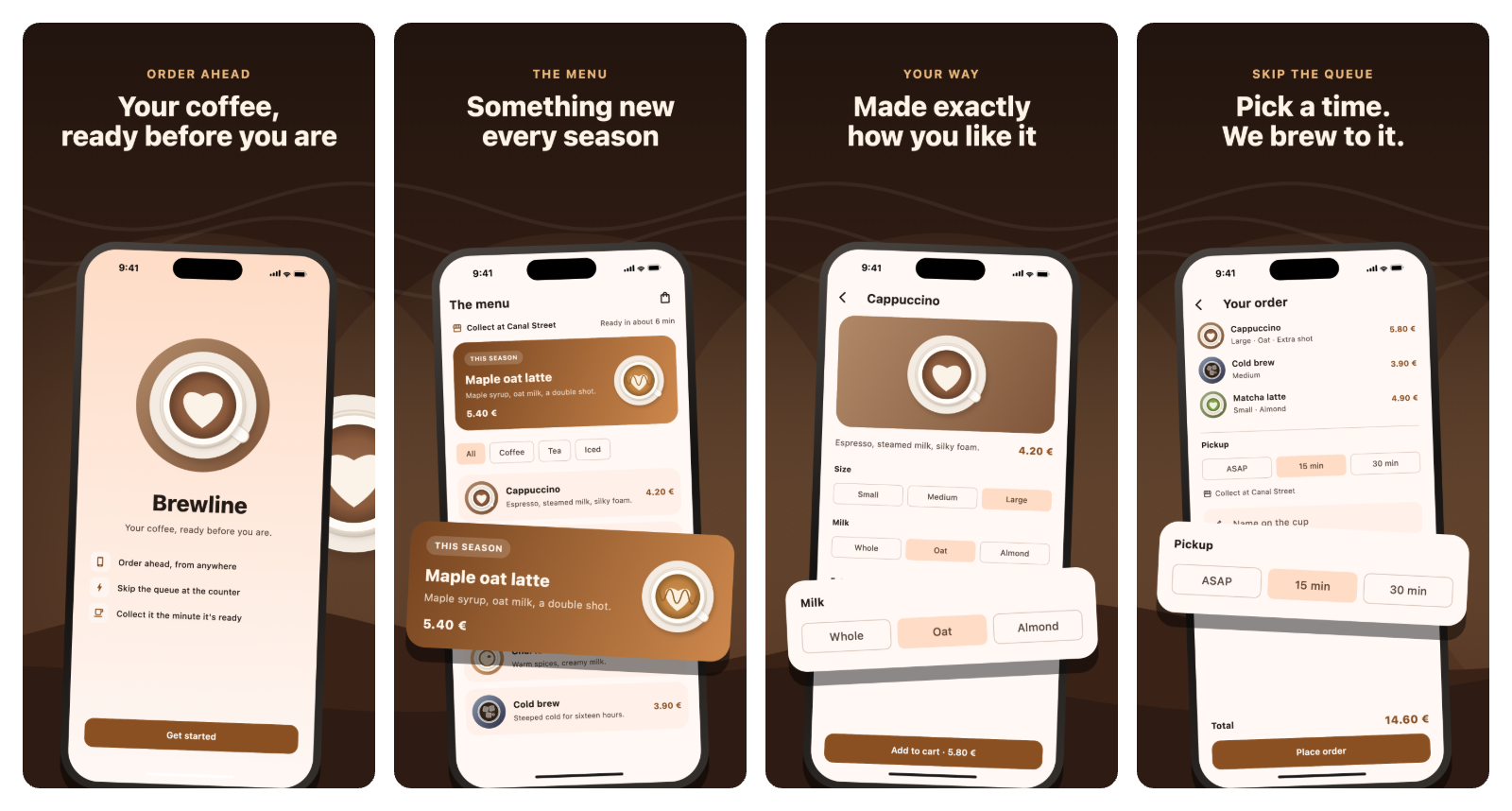
These are the first four images the demo exports for the 6.9" iPhone slot. The card held out in front of each phone is the app's own widget, drawn again at the canvas's scale in the listing's language, and the hills behind them are one drawing, split across the set.
How it works#
- Your scenarios name the screens worth showing, with
shot: Shot('Menu'). tool/flutterware.dartsays which stores you ship to and in which languages.fw run store exportruns those scenarios once per store device and language, draws your frame around each named shot, and writes the images at the exact size each store asks for.
The export lands in a folder that fastlane deliver and fastlane supply read
as it is.
Turn it on#
// tool/flutterware.dart
fw.use(
  StoreShots(
    apps: [
      StoreShotsApp(
        app,
        file: 'test/scenarios/mobile/shop_test.dart',
        tag: 'store',
        frame: 'lib/store_frame.dart',
        listings: [
          Listing.appStore(locales: {'en': 'en-US', 'fr': 'fr-FR'}),
          Listing.play(locales: {'en': 'en-US', 'fr': 'fr-FR'}),
        ],
      ),
    ],
  ),
);fileis the scenario file (or folder) the shots come from. Shots are numbered in the order they're captured, so this file is where the order of your listing is decided. Leave it out and every scenario in the package runs, which is rarely the story you want to tell.tagkeeps only shots carrying that tag, likeShot('Home', tags: ['store']). It's how a screen from a long scenario gets into the listing without rewriting anything.localesmaps your app's language to the store's name for it. The two don't always match, so you write both.frameis optional; see below.
The sizes are the stores'#
You never type a pixel size. Each listing brings its own:
| Store | Slot | Rendered as | Image |
|---|---|---|---|
| App Store | iPhone 6.9" | iPhone 16 Pro Max | 1320×2868 |
| App Store | iPhone 6.5" | iPhone 12 Pro Max | 1284×2778 |
| App Store | iPad 13" | iPad Pro 13" | 2048×2732 |
| Google Play | Phone | a 20:9 Android phone | 1080×2160 |
| Google Play | 10" tablet | an Android tablet | 1600×2560 |
Apple scales these to its smaller slots. It needs one iPhone set: 6.5" is required when there is no 6.9", and App Store Connect does not always offer the 6.9" slot, so both are exported. Google Play needs one extra step: it refuses images taller than twice their width, and modern Android phones are taller than that. So a Play phone image is always a composition, with the real phone screen placed on a 2:1 canvas. If you don't declare a frame, that one set gets a plain default frame and the others keep the app's own pixels.
Listing.appStore(classes: …) and Listing.play(classes: …) narrow the slots
if you don't ship to all of them.
Write a frame#
A frame is a widget that receives one shot and draws the image around it:
// lib/store_frame.dart
import 'package:material_ui/material_ui.dart';
import 'package:flutterware/store.dart';

StoreFrame storeFrame(StoreShot shot) => CoffeeStoreFrame(shot);

class CoffeeStoreFrame extends StoreFrame {
  const CoffeeStoreFrame(super.shot, {super.key});

  @override
  Widget build(BuildContext context) {
    return SizedBox(
      width: shot.canvas.logicalWidth,
      height: shot.canvas.logicalHeight,
      child: Stack(
        children: [
          Positioned.fill(child: ColoredBox(color: Color(0xFF2C1B14))),
          Positioned(
            left: 24,
            right: 24,
            bottom: 0,
            child: Image(image: shot.image),
          ),
        ],
      ),
    );
  }
}
The file must export a top-level storeFrame. The StoreShot it gets carries:
image: the app's screen for this shot, andset: every screen in the set.indexandtotal: where this image sits in the listing.slug(likeorder-placed),localeanddevice: enough to pick a headline per shot and per language.canvas: the size to fill, in the same logical pixels the app was laid out in, so a 16pt caption looks like one.panoramaWidthandpanoramaOffset: draw one background as wide as the whole set, shift it by the offset, and consecutive images join up exactly.
The demo's frame uses all of
this: a phone body with the status bar StatusChrome draws, a headline read
from a per-language file, one of the app's own widgets lifted out of each
screen, and a scene continuing from one image to the next.
Export and look#
fw run store export                          # everything declared
fw run store export --listing=play --locale=fr
fw run store open                            # the output folder, in your file manager
The images go to build/flutterware/store/<app>/, in fastlane's layout:
ios/<locale>/ for the App Store and android/<locale>/images/phoneScreenshots/
for Play. The app's unframed pixels are kept beside them under unframed/.
Set output: on the app to write somewhere else, and
layout: StoreLayout.plain for a layout without fastlane's folder names.
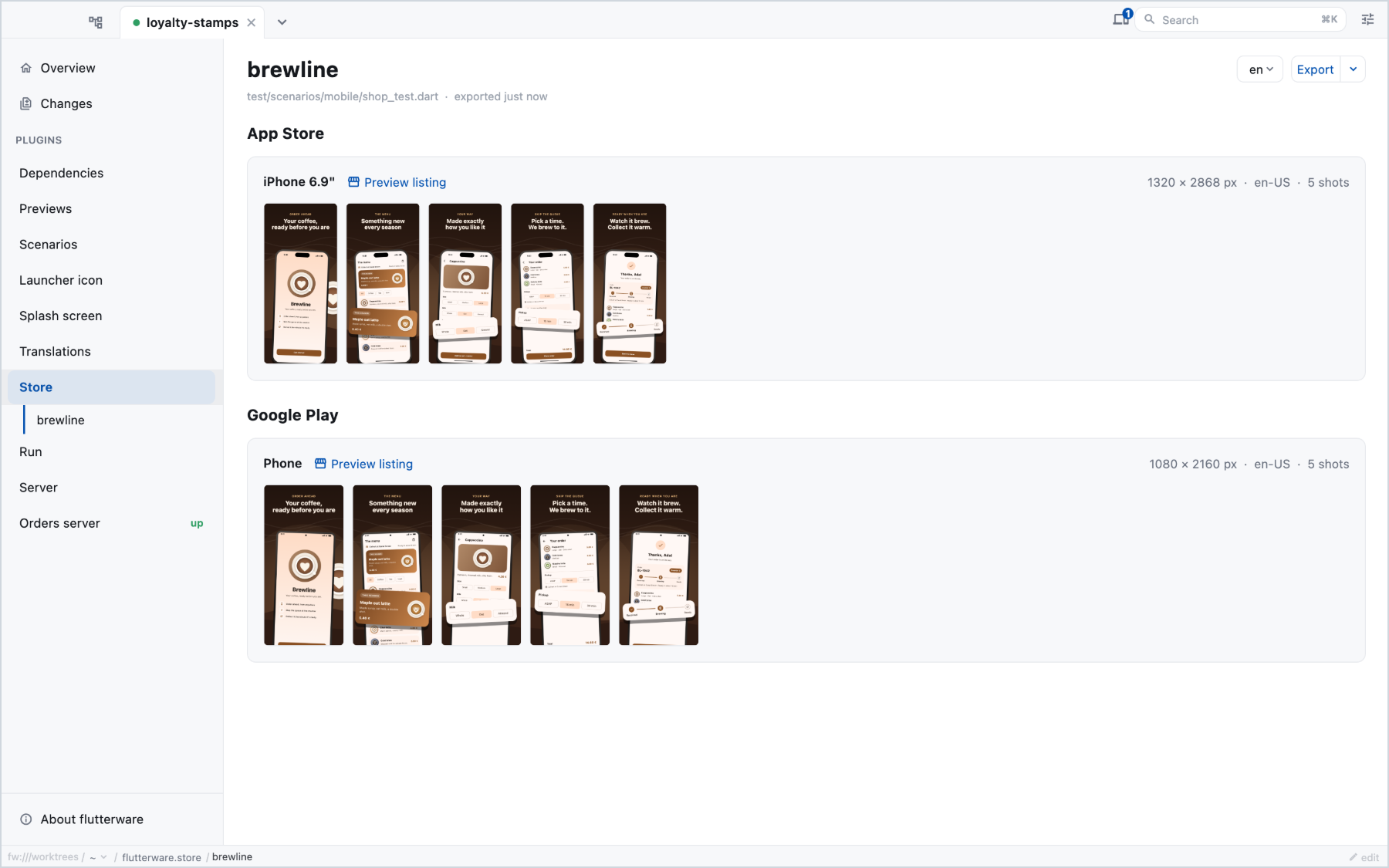
The Store panel shows the last export: one row per store slot, in listing order, for the language picked at the top. A set with more images than the store accepts (ten per slot on the App Store, eight on Play) is shown in full, with the extra ones marked.
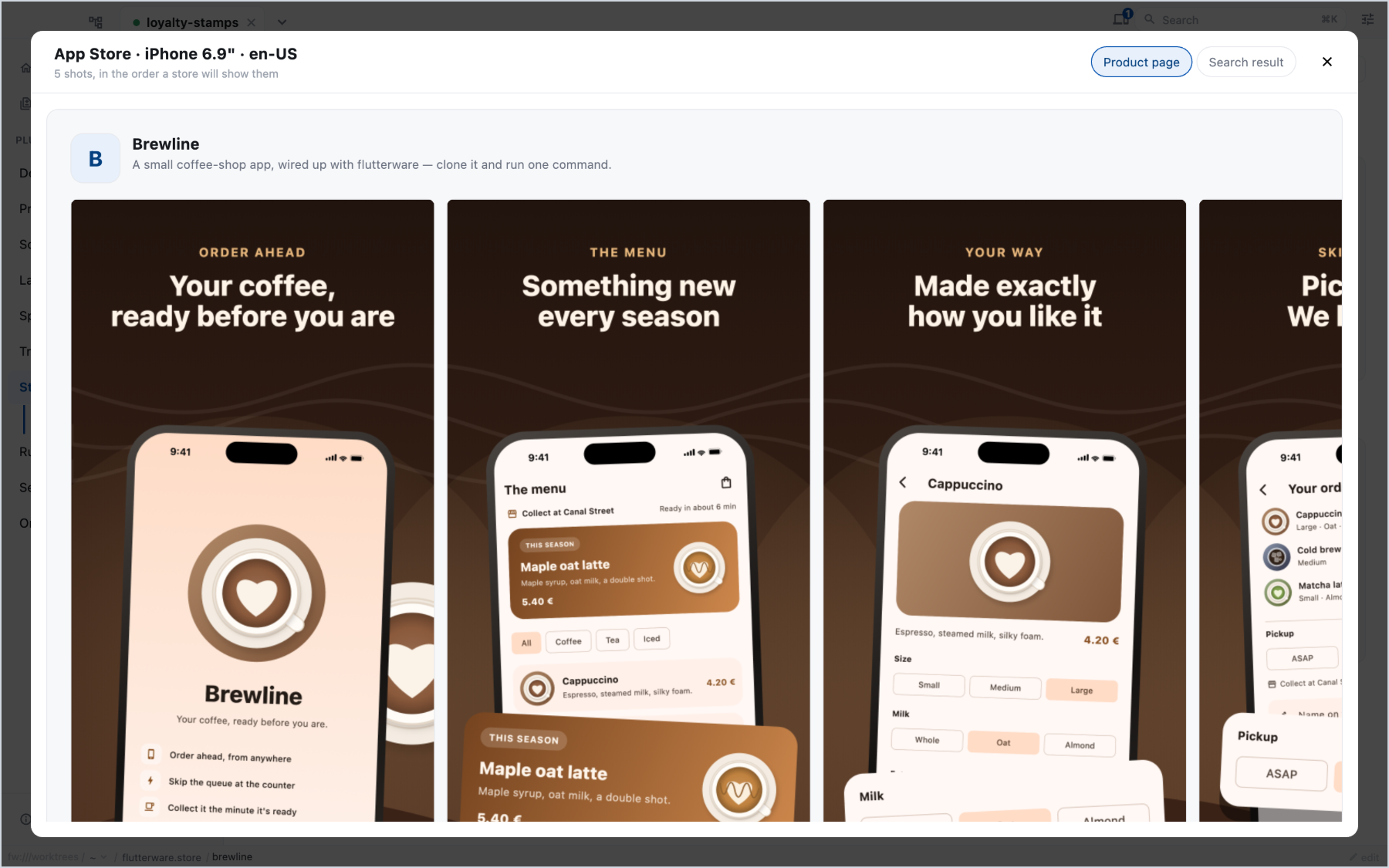
Preview listing shows a set the way the store page will: the images in a row, under the app's name and description.