 flutterware
Run
Launch your app on any device from the studio, then watch it and drive it while it runs: logs, network calls, the widget tree, device settings, and taps and typing from the studio, the command line or a coding agent.
Turn it on#
// tool/flutterware.dart
fw.use(
  Run(
    packages: [
      RunPackage(
        app,
        entrypoints: [
          Entrypoint(
            'lib/main.dart',
            name: 'Brewline',
            description: 'The coffee shop',
          ),
        ],
      ),
    ],
  ),
);
Leave entrypoints empty and every file directly in lib/ with a main() is
offered.
Naming them is worth it: the name and description are what you, and an agent,
pick from.
Launch#
In the studio, Run opens on a launch form: pick an entry point and a device, then Launch. Phones, emulators, simulators and the desktop all work, including a physical iPhone once its Xcode signing is set up. Several apps can run at once, on different devices or from different worktrees.
From the command line:
fw run run devices                                    # what can run, and what is running
fw run run launch --device=macos --entrypoint=lib/main.dart --wait=true
fw run run reload                                     # hot reload
fw run run restart                                    # hot restart
fw run run stop
While it runs#
The run's tabs:
- Screen: the app's current screen, with an inspector for its widget tree.
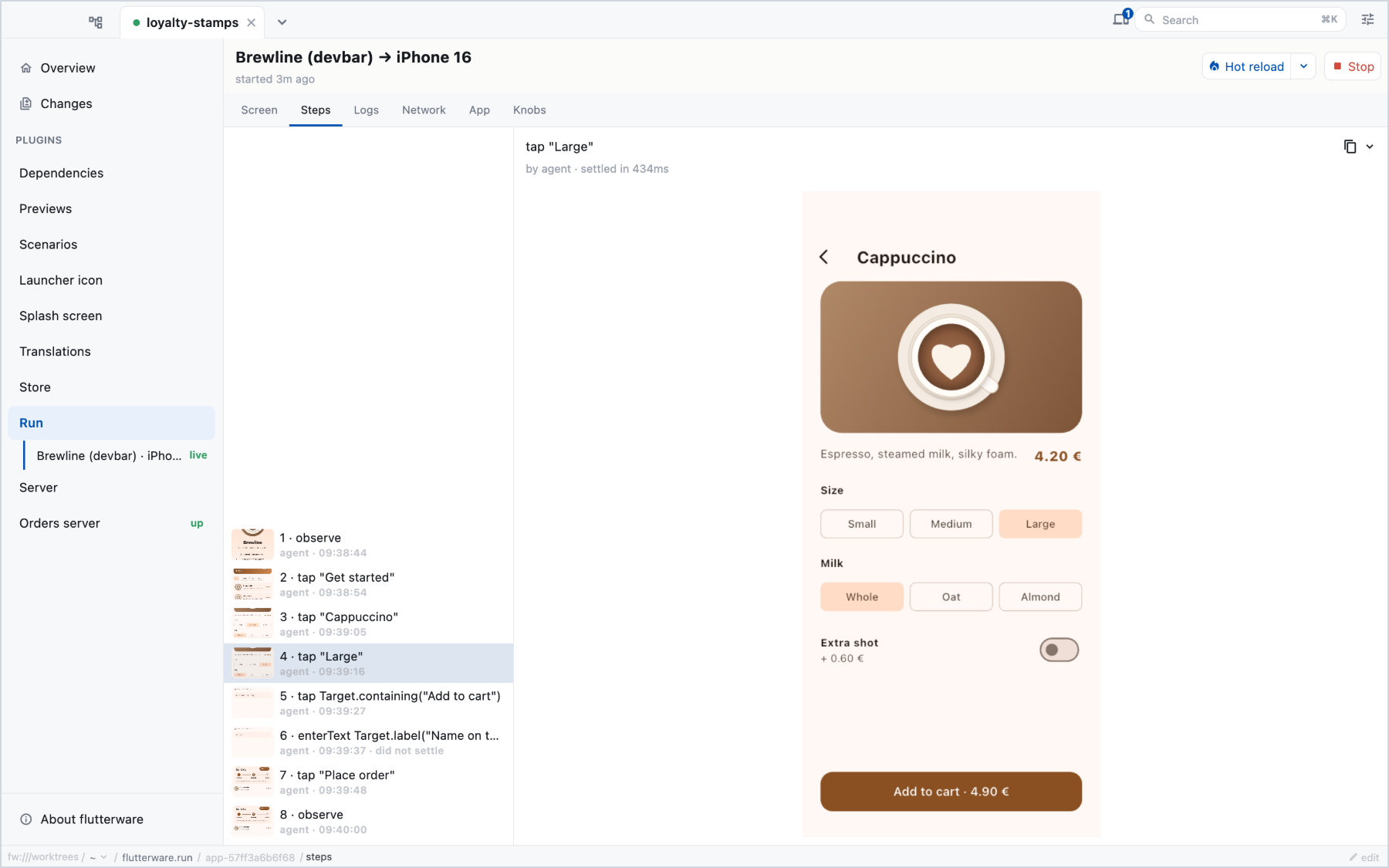
- Steps: every action the command line or an agent sent to the app, each with the screen it produced, and your own taps in between.
- Logs: what the app printed, what the build said, and the platform's native log, where plugins report whether push, purchases or the camera worked.
- Network: the app's HTTP requests; open one for its headers, body and timings. It reads Flutter's own HTTP profiling, so the app needs no wrapper or special client.
- App: panels your app declares through its devbar, such as feature flags or a simulated push notification.
- Knobs: the entry point's knobs (see below).
On Android and on the iOS simulator, a strip above the screen changes the device's appearance, text size, orientation, language and accessibility settings, and shows what each one is currently set to.
Knobs#
A knob is an optional named parameter of your main:
void main({
  String apiUrl = 'https://api.example.com',
  bool mockPayments = false,
}) {
  runApp(ShopApp(apiUrl: apiUrl, mockPayments: mockPayments));
}
Plain flutter run still calls main() and gets the defaults. Launched from
flutterware, each parameter is a control on the Knobs tab, and changing one
costs a hot restart instead of a rebuild. An enum parameter becomes a picker
on its own. For anything the signature can't say, annotate it in
tool/flutterware.dart with Knob('apiUrl', options: […]) on the entry point.
A flavored app lists its flavors on the package with flavors:, and each
entry point names the one it's built with: Entrypoint(…, flavor: 'staging'),
or flavorByPlatform: when that differs between Android and iOS.
Drive it#
An app launched by flutterware can be driven: every action finds its target, checks it can actually be reached, performs it, waits for the screen to settle, and answers with what is on screen now.
fw run run observe                                  # what's on screen
fw run run act --verb=tap --target='Cappuccino'
fw run run act --verb=enterText --target='{"key": "shop.cupName"}' --text='Ada'
fw run run act --verb=scroll --target='The menu' --dy=600
fw run run act --verb=back
The verbs are tap, doubleTap, longPress, secondaryTap, hover,
unhover, drag, scroll, scrollTo, enterText, key, back, wait,
navigate and observe. A target is visible text, or JSON for a key, a
semantics label, a tooltip, a widget inside another, or a point.
A wrong target never succeeds quietly: if it matches nothing or several things, the answer lists what is on screen so the next try can be exact.
An agent does the same over MCP with flutterware_act, and gets a screenshot
and the visible texts back with each step, so it can edit code, hot reload and
look again in about two seconds. You're sharing the app with it: your own taps
show up in its next answer, and its steps show up on your Steps tab.
What Flutter can't see#
Permission dialogs, web views and other apps belong to the platform, not to the
Flutter widget tree. Add --layer=native to act or observe to address the
platform's accessibility tree instead, and --verb=foreground brings a
backgrounded iOS app back without restarting it. It's slower, and it's there
for the moments the app hands over to the system.
Reference#
Every action and its options, including inspect, screenshot, network and
setDevice:
flutterware.run in the capabilities reference.